

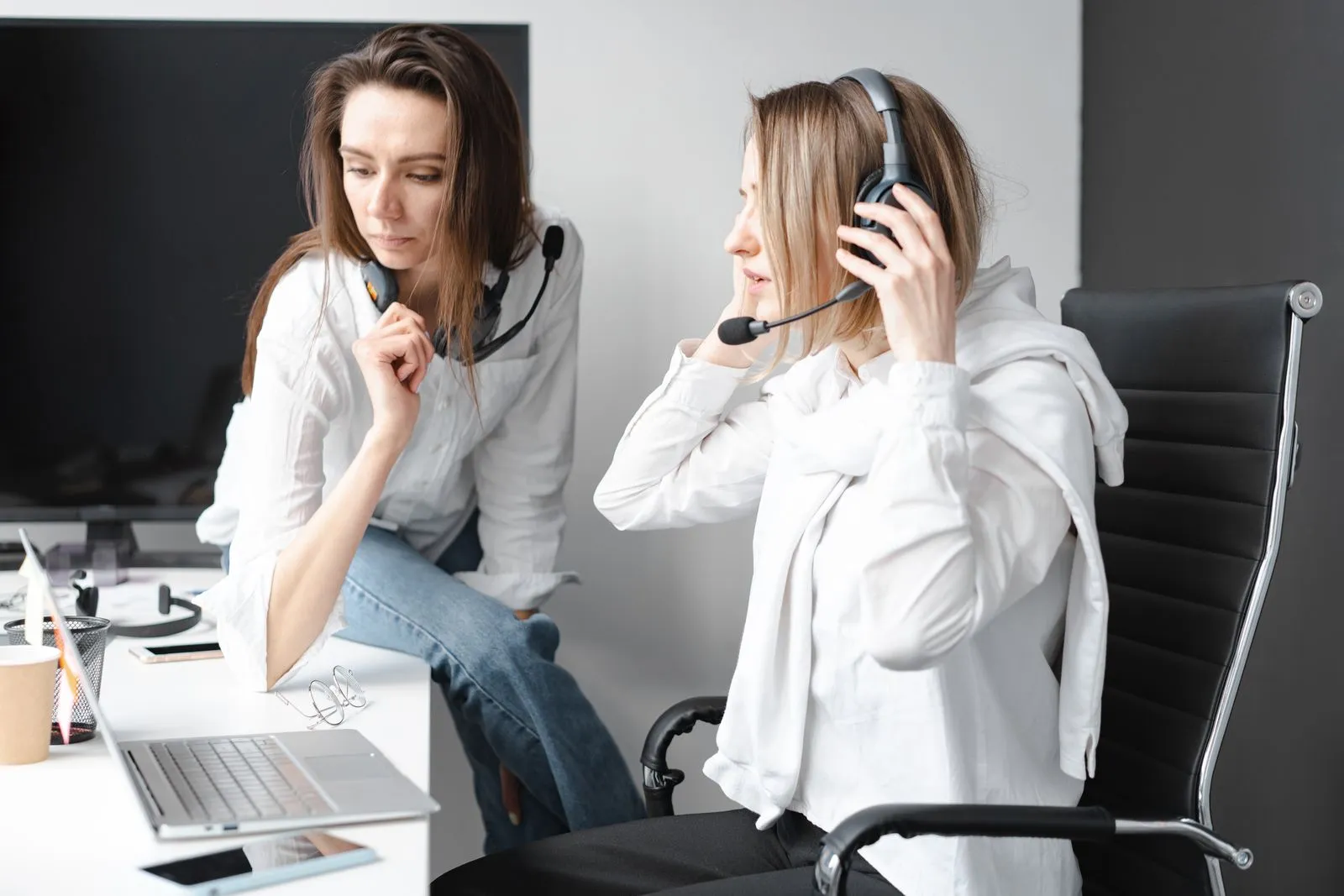
A PHP 500 to 2,000 headset can sound clean on a client call if you get three things right: the mic position, the input selected in your call app, and the noise in the room. Put the boom about two finger-widths from the corner of your mouth, slightly off to the side. Pick the headset by name in Zoom, Teams, or Meet, not “Default” and not the laptop’s built-in microphone. Leave the call app’s noise suppression on its default setting. Those three changes fix most of the complaints beginners get.
If your audio is choppy or robotic rather than muffled, the headset is probably fine and the problem is your internet connection. The diagnosis table below tells you which is which.
If you have not bought a headset yet, see best budget headsets for VA calls for models and September 2026 prices.
Diagnose the problem from how it sounds
Ask a friend to join a call, or record yourself, and match what you hear:
| What the client hears | Most likely cause | Fix |
|---|---|---|
| Muffled, distant, “in a cave” | Laptop mic selected instead of the headset, or boom pointed away from your mouth | Select the headset in the app; rotate the boom toward the corner of your mouth |
| Popping on “p” and “b” sounds, breathing | Mic directly in front of your mouth | Move it to the side, at the corner of the mouth |
| Constant hiss | Cheap 3.5 mm jack, or input volume set very high | Use a USB headset, or lower input volume to around 70% and let the app adjust |
| Their own voice echoing back | Someone is using laptop speakers, sometimes you | Everyone on headphones; if it is you, check the speaker output is the headset |
| Robotic, words cut off, delay | Network: jitter, packet loss, or weak Wi-Fi | Check Zoom statistics (below); move to Ethernet or closer to the router |
| Your voice fades in and out | Aggressive noise suppression, or Bluetooth switching modes | Set suppression to default or low; use wired USB or the headset’s dongle |
| Background TV, roosters, traffic | Room noise reaching a mic that is too far away | Bring the boom closer and close the window on the noisy side |
Get the mic position right
- Distance: about two finger-widths, roughly 2 to 3 cm, from the corner of your mouth. Further away, the mic hears the room more than you.
- Angle: the mic opening (usually marked by a dot, a slot, or the foam side) faces your mouth.
- Side: off to the side, not straight in front. You avoid breath noise and plosives.
- Consistency: headsets with a flexible boom drift. Check it again after you adjust your glasses or hair.
Pick the right input and settings in each app
Windows: Settings > System > Sound. Under Input, select the headset and use “Test your microphone”. Under Output, select the headset too.
Zoom: click your profile picture > Settings > Audio. Choose the headset as Speaker and Microphone, then use “Test speaker” and “Test microphone”. Zoom’s audio profile defaults to noise removal, which suits most VA calls. Leave “Original sound for musicians” off; it disables noise processing. During a call, the arrow next to the microphone icon shows which mic is active.
Microsoft Teams: Settings > Devices. Pick the headset under Audio devices and use the test call option. Teams also offers noise suppression levels there; leave it on Auto unless your voice cuts out.
Google Meet: before joining, click the three-dot menu > Settings > Audio and choose the headset for both microphone and speakers.
Pick the headset by name, never “Default” or “Communications device”. Windows sometimes changes the default when you plug in a monitor, phone, or Bluetooth device, and “Default” quietly follows it.
Fix the room without buying foam
You do not need acoustic panels. You need fewer hard surfaces near the mic and less noise reaching it.
- Face into the room, not a wall. A bare wall right in front of you reflects your voice back into the mic.
- Add soft things nearby: a curtain, a bed, a sofa, clothes hanging behind you. A room with a bed sounds better than an empty kitchen.
- Close the window on the street side during calls and switch off the electric fan nearest you; a boom mic picks up fan noise more than you would expect.
- Plan around predictable noise. Neighbors’ videoke tends to peak at night and on weekends; roosters at dawn. If your client is in the US, your calls may fall exactly then. Know which room is quietest at 10 pm and at 5 am.
- Mute when you are not speaking in group calls, and learn the headset’s mute button so you do not have to hunt for it.
Rule out the internet before blaming the headset
In a Zoom meeting, click the arrow next to the video icon > Video settings > Statistics. Zoom’s statistics guide recommends:
- Latency: 150 ms or less
- Jitter: 40 ms or less
- Packet loss: 2% or less
If jitter or packet loss is over those lines while you are talking, your voice will sound robotic regardless of the headset. Plug in an Ethernet cable, move closer to the router, or turn off your video. The slow internet guide has a fuller fix list and backup plans.
The 5-minute recorded test
Do this with every new headset, after changing rooms, and before a first call with a new client.
-
Open Windows Sound Recorder, or Zoom > Settings > Audio > Test microphone.
-
Turn on whatever usually runs in your room: the fan, aircon, or the TV in the next room.
-
Read this script at your normal speed:
Hi Sarah, it’s Ana. I’ve moved Thursday’s call with Dr. Patel to 3:30 pm Eastern and sent the updated invoice for USD 245.50 to accounts@clientco.com. The tracking number for the supplier order is Z-4417-B.
-
Play it back through speakers, not the headset.
-
Check: Can you hear every number and the email address clearly? Is the fan noticeably quieter than your voice? Any popping, hiss, or echo?
-
Fix one thing (position, input, room) and record again.
Names, email addresses, and numbers are what clients actually need to hear correctly. A mic that blurs “fifteen” and “fifty” is a work problem, not a sound-quality preference.
Speak so you are easy to understand
- Slow down slightly on numbers, names, and emails. Repeat important ones: “That’s 245.50, two-four-five point five zero.”
- Spell with a phonetic alphabet for email addresses and reference codes: “Z as in Zulu, 4-4-1-7, B as in Bravo”.
- Keep a glass of water nearby. Dry mouth makes clicks the mic picks up.
- Smile on greetings. It changes your tone, and clients notice.
What good sounds like
| Weak | Good | |
|---|---|---|
| Opening | “Hello? Can you hear me? Wait, let me fix this.” | Audio tested beforehand; starts with “Hi Sarah, good morning, can you hear me okay?” |
| Background | Fan, TV, and a tricycle passing | A faint fan, at most |
| Numbers | Client asks you to repeat the amount | Client writes it down the first time |
| Dropouts | Robotic for a few seconds every minute | None, or you notice early and switch to audio-only |
FAQ
Can a PHP 500 headset really sound professional?
For voice calls, yes, if the mic is placed well and the room is reasonably quiet. A USB headset in the PHP 1,500 to 2,000 range is more forgiving, especially if your laptop’s headset jack adds hiss.
Should I use earphones with a mic instead?
Not for client calls. The mic hangs near your chin or sits in your ear, so it picks up more room and clothing noise than a boom mic. Keep them as a backup.
When is it time to upgrade?
Upgrade when you have done the placement, settings, and room fixes and your recording still has hiss or the fan is as loud as your voice, or when the headset is uncomfortable after two hours. See the headset guide for the next step up.
Sources and further reading
- Zoom: Testing your audio settings
- Zoom: Changing audio settings during a meeting
- Zoom: Accessing meeting statistics
- Zoom: Join a test meeting
- Microsoft: Reduce background noise in Teams meetings
- Google Meet Help: Fix audio issues
- Related: Minimum setup to start as a VA
Video references
Watch the workflow
Fees, limits and platform rules change. The date at the top shows when this guide was last updated, and the sources section links to the official pages it relies on. If something has changed, tell us and we will correct it.