

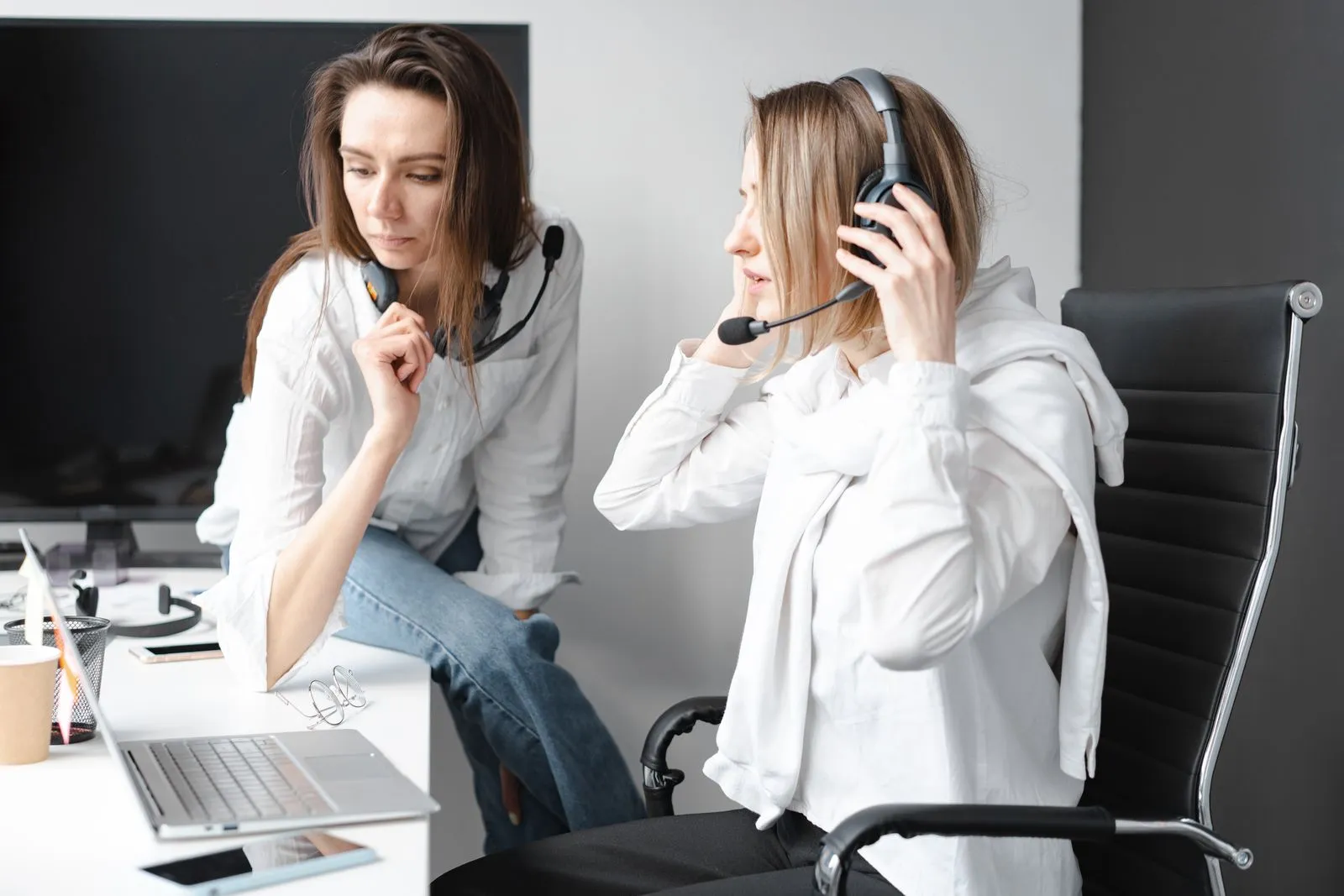
A client does not need studio-quality audio from a virtual assistant. They need to understand you without asking you to repeat yourself or listening through preventable echo and noise. A modest headset can meet that standard when the room, microphone position, app settings, and connection have been tested together.
Before buying a replacement, make a recording through the meeting app you expect to use. That recording tells you whether the problem is the headset, the room, the selected input, the computer, or the internet.
Improve the room first
Hard walls, tile, glass, and an empty desk reflect sound back into the microphone. Move to the quietest practical part of the home and use ordinary soft surfaces to reduce echo:
- Face curtains, hanging clothes, an open wardrobe, or a bed instead of a bare wall.
- Close doors and windows before a scheduled call.
- Move away from fans, televisions, kitchens, and other conversations.
- Put the laptop on a stable hard surface so desk bumps and typing vibrations are reduced.
- Agree on a quiet call window with the people you live with.
- Choose the smaller furnished room when you have a safe option.
You do not need to build a fabric booth. Keep blankets and other materials away from laptop vents, chargers, power strips, lamps, and anything that becomes hot.
Put the microphone in the right place
For a boom microphone, begin about two finger-widths from the corner of your mouth, slightly
below or to the side. Speaking directly into the capsule can create strong bursts on words that
begin with p and b. Keep the boom in a consistent position when you turn your head.
For earbuds with an inline microphone, steady the cable near your collar. A microphone rubbing against clothing can be louder than the room. Do not hold it in your hand throughout a call, because the distance and handling noise will keep changing.
The main advantage of a boom is its position close to your voice. It cannot remove a nearby conversation or television, so combine it with room control and sensible muting.
Select the headset in the call app
Connecting a headset does not always make it the active microphone. Open the audio settings in Zoom, Google Meet, or Microsoft Teams and choose the exact input and output.
Check the input meter:
- Speak into the headset and confirm the meter moves.
- Gently tap near the laptop microphone.
- If the tap creates a stronger response, the app may still be using the laptop.
- Select the headset again and save the setting where the app allows it.
Repeat this check after an operating-system update, a Bluetooth reconnection, or a change of USB port.
Record a useful test
Make a short recording through the same meeting app used for work. Say your name, explain a simple task, pause for several seconds, type briefly, and speak a little more loudly.
Listen with headphones and ask:
- Can I understand every word at normal playback volume?
- Is the voice hollow, distant, clipped, or distorted?
- Can I hear fan noise, cable rubbing, keyboard noise, or desk bumps?
- Does the volume change when I turn my head?
- Is there a hum that changes when the laptop charger is disconnected?
- Does noise suppression remove part of a quiet sentence?
Change one thing at a time, then record again. If you change the room, mic position, input, and software setting together, you will not know which change helped.
Understand noise-cancellation labels
Headset listings often use similar terms for different features:
- Microphone noise reduction, ENC, or a branded processing feature tries to reduce some sound sent to the other person. Results vary with the type and direction of noise, room echo, microphone position, firmware, and the meeting app.
- Passive isolation is the physical ear cushion reducing what you hear.
- Active noise cancellation (ANC) uses microphones and electronics to reduce what the wearer hears. It does not automatically make your outgoing microphone clearer.
A manufacturer’s percentage or “AI noise cancellation” label is not a guarantee for your home. Steady fan noise may be easier to reduce than nearby speech, dishes, horns, or sudden sounds. Test the exact model in your own room.
Compare connectors before brands
A headset that cannot connect reliably is not a bargain. Check the exact computer ports and product variant:
| Connection | Advantages | Things to check |
|---|---|---|
| USB-A or USB-C wired | Stable, no battery, usually simple to select | Exact port, adapter quality, cable length, and inline controls |
| 3.5 mm four-pole plug | Works with many laptops and phones | Whether the device has a compatible combined headset jack |
| Bluetooth | Fewer cables and more movement | Battery, pairing, microphone quality, call controls, and computer compatibility |
| Wireless USB receiver | Often more consistent for calls than basic Bluetooth | Receiver type, available USB port, replacement cost, and exact UC or Teams variant |
Do not assume two products with the same family name have the same plug, included adapter, or call certification. Match the full model number or SKU in the listing with the manufacturer’s page.
Examples to research
The following models illustrate common budget and midrange options. Specifications and available variants change, so use the linked manufacturer sources at the end of this guide and verify the exact local listing before buying.
| Model | Connection to verify | Microphone description | Practical consideration |
|---|---|---|---|
| Logitech H151 | 3.5 mm four-pole plug | Rotating noise-cancelling boom | Check that the laptop has a compatible combined jack |
| Logitech H390 | USB-A or USB-C variant | Bidirectional noise-cancelling mic | Straightforward wired option; confirm the exact connector |
| Jabra Evolve 20 | USB-A or USB-C SKU | Unidirectional boom | Inline controls can be useful for regular call work |
| Poly Blackwire 3220/3225 | USB variant; some models add 3.5 mm | Noise-cancelling mic | Lightweight wired family with several variants |
| Yealink UH34 | USB-A or USB-C; mono or dual | Acoustic Shield or AI noise-cancellation description | Confirm standard or Lite version and control compatibility |
| EKSA H16 | Bluetooth or included USB receiver | ENC microphone | Test battery, pairing, and wireless stability |
| Logitech Zone 300 | Bluetooth | Dual beamforming microphones | Check whether the listing includes any receiver |
| Jabra Evolve 65 TE | Bluetooth plus supplied USB adapter variant | Unidirectional boom | A higher-cost option for multi-device use |
Do not buy from the table alone. Fit is personal, wireless behavior depends on the computer, and seller listings can combine photos or specifications from different variants. For local price comparisons, see Best Budget Headsets for VA Calls in the Philippines. The USB vs Bluetooth Headsets for Remote Work guide explains the connection trade-offs.
Use the return window as a test period
Check the live order page for the return deadline, eligible reasons, required evidence, and seller warranty. Marketplace rules can change, and a manufacturer’s warranty is not the same as a platform return right.
When the package arrives:
- Photograph the sealed parcel and record a continuous unboxing if the platform recommends it.
- Keep the box, bags, adapters, labels, and manuals.
- Test every connector, control, channel, boom position, and supplied adapter.
- Record in a quiet room, with a fan at your side, and while typing.
- Make a test call through the app you expect to use.
- Wear the headset for a normal practice session, including glasses if you use them.
- Move the cable gently near each end or test wireless range within your actual workspace.
- Switch to your backup microphone without leaving the meeting.
If a channel is dead, the mic cuts out, the connector differs from the listing, or the item arrives damaged, keep the recordings and screenshots. File through the marketplace process within the stated window rather than negotiating through an unverified private message. Review Shopee Philippines’ current Refunds and Return Policy when that marketplace applies.
Use software suppression carefully
Zoom and Teams provide noise and echo controls, and Google Meet manages audio in its own way. Use the normal speech setting for ordinary calls. Music or “original sound” modes may preserve background noise that speech processing would otherwise reduce.
Test third-party noise-removal tools with fictional conversation before using them for client work. Confirm the client’s software and privacy rules first. Strong filtering can remove quiet words, add delay, or overload an older computer.
Software cannot repair every room or microphone problem. If the recording is already clear, avoid stacking several filters simply because they are available.
Speak for clarity
Use your normal accent. Sit comfortably, speak at a steady pace, finish sentences, and pause when another person begins talking. Headphones prevent the client’s voice from playing through speakers and returning to the microphone.
Mute during a long presentation or predictable background interruption. In a fast discussion, repeated muting may cut off the first word of your reply. Learn the headset and app controls before the call.
For additional practice, use How to Improve Your Business English for Client Work.
Separate audio problems from internet problems
Robotic speech, delayed replies, and frozen video often come from the connection. Close downloads and cloud backups, move near the router or use Ethernet, and turn off video after telling the client you are protecting the audio.
Keep the meeting link and approved contact method on your phone. A useful dropout message is:
My connection dropped. I am switching to my backup and will rejoin shortly. If it remains unstable, may I use the phone dial-in?
Build and test the full fallback with Working as a VA With Slow Internet.
Client-call practice exercise
Ask a friend to join a fifteen-minute test call, or use two accounts:
- Introduce yourself and explain a fictional inbox-cleanup task.
- Share only one browser window.
- Type notes while the other person speaks.
- Mute, unmute, and switch to a backup microphone.
- Turn on a fan for one minute and compare app suppression settings.
- Ask the listener which words were difficult to understand and whether the volume changed.
- Write down one room change, one microphone change, and one connection change to test next.
Do not use client names, recordings, or confidential information in a practice call.
Five-minute pre-call checklist
- The laptop, phone, and wireless headset are charged.
- Doors and windows are closed, and nearby notifications are silenced.
- The correct microphone and speaker are selected in the meeting app.
- A short test recording has clear volume and no distracting echo or cable noise.
- Downloads and unnecessary apps are closed.
- The agenda and needed files are open.
- A tested backup connection and microphone are available.
- Recording or transcription will not begin without the required consent.
FAQ
Can a cheap headset sound professional?
Yes, when it produces clear, consistent speech in your room and call app. Test it instead of judging by price alone. Replace it when recordings show a hardware limitation, unreliable connection, or uncomfortable fit that you cannot correct.
Where should I place a boom microphone?
Begin about two finger-widths from the corner of your mouth, slightly below or to the side. Record a sample and adjust from there because microphone designs and voices differ.
How can I reduce echo without acoustic foam?
Work near curtains, clothes, a bed, or other soft furnishings and away from bare walls. Keep fabric away from electronics and ventilation.
Why does my headset still sound distant?
The meeting app may be using the laptop microphone. Select the headset manually and check the input meter. Also confirm that the boom is close enough and that the cable or Bluetooth connection is stable.
When should I upgrade?
Upgrade when testing identifies a specific problem, such as cutouts, a damaged connector, unacceptable microphone clarity, missing compatibility, or painful fit. Start with the Minimum Setup to Start as a VA before buying extras.
Sources & further reading
- Jabra Evolve 20 technical specifications
- HP Poly Blackwire 3200 Series specifications
- Yealink UH34/UH34 Lite specifications
- Logitech H390 specifications and H151 specifications
- EKSAtelecom H16 product specifications
- Logitech Zone 300 specifications
- Jabra Evolve 65 TE technical specifications
- Shopee Philippines Refunds and Return Policy
- Zoom audio settings, Microsoft Teams noise suppression, and Google Meet audio troubleshooting
Video references
Watch the workflow
One last check: if your next step involves a fee, an ID, or a platform account, open the official link first. Rules and availability can differ by country and can change after a guide is published.